How to Protect Your Privacy Online: A Simple Guide
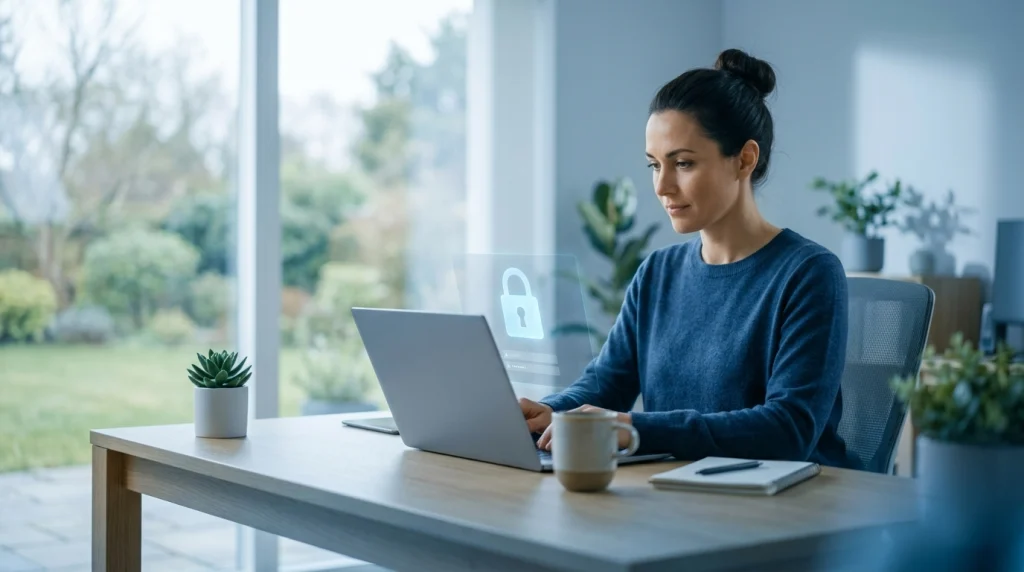
Each time you download an app, buy something online, or browse your social feeds, you leave digital footprints. Details like your name, whereabouts, routines, and hobbies can be gathered, passed along, or sold. If it lands with the wrong person, it can be used for scams, hijacked accounts, or identity theft.
The good news? Learning how to protect your privacy online does not require special skills. Small routines add up fast. In this guide, you will learn how to protect personal information online, which tools help the most, and what to do if something goes wrong.
Table of Contents
Why Online Privacy Matters
Your personal data has real value. Companies use it to target ads. Scammers can use the same details to take over your accounts or apply for credit cards as you.
The Federal Trade Commission (FTC) tracks identity theft and fraud reports across the United States. Millions of people file reports every year. That shows how common the issue is, and anyone can become a target.
When you protect your privacy, you:
- Reduce the odds of facing identity theft and fraud
- Keep your accounts safer
- Control who sees your photos, messages, and location
- Avoid spam calls, junk email, and creepy ads
What Counts as Personal Information?
Lots of folks assume only a Social Security number needs protecting. Actually, many small details can add up to reveal exactly who you are. Here is a quick look.
| Type of Information | Examples | Risk Level |
|---|---|---|
| Highly sensitive | Social Security number, bank and card numbers, passwords, your driver’s license number | Very high |
| Personal details | Full name, home address, birth date, phone number, email | High |
| Digital footprint | Location history, browsing habits, photos, online purchases | Medium |
| Public details | Posts you share openly, public profiles | Varies |
The more of these pieces a stranger can find, the easier it is for them to trick you or pretend to be you.
10 Easy Habits That Show You How to Protect Your Privacy Online
Go at your own pace. Try the first few, and add the rest when you are ready.
1. Use Strong, Unique Passwords
Your password works like a deadbolt on each of your accounts. A weak or repeated one is like hiding a spare key under the doormat.
Here is what makes a password strong:
- It is long. Shoot for 12 to 16 characters or more.
- It is unique. Each account needs its own password.
- It avoids your own name, birthday, or your pet’s name.
A great trick is a passphrase. It means stringing together a few unrelated words, like “purple-tractor-lemon-river.” You can recall it easily, but a computer will struggle to crack it.
2. Use a Password Manager
Nobody can remember dozens of long passwords. A password manager works like a digital vault for all of your logins. Only your master password has to live in your head. From there, the app builds new passwords and types them in for you.
Built-in options from Apple, Google, and Microsoft are a good place to start. Several trusted paid and free apps also exist.
3. Turn On Multifactor Authentication
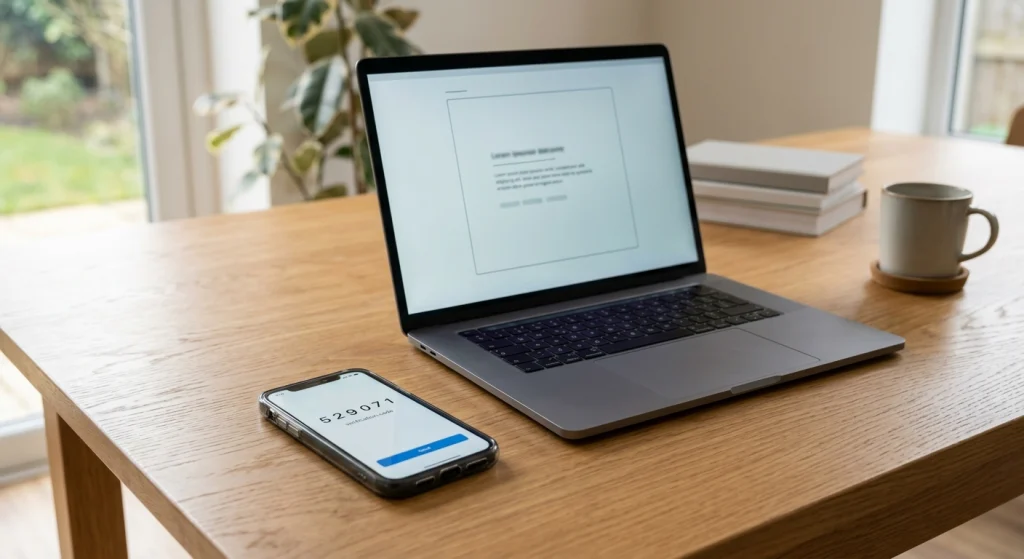
Multifactor authentication (MFA) adds a second step when you log in. Once you type your password, you may be asked to enter a code texted to you or tap “approve” in an app.
CISA, the Cybersecurity and Infrastructure Security Agency, is part of the federal government. MFA is on its short list of four habits that keep people safer online. A thief holding your stolen password still cannot log in without that extra step.
Turn it on first for:
- Your email accounts
- Your bank and credit card accounts
- Your social media accounts
- Online file storage like iCloud or Google Drive
Authenticator apps are usually safer than text message codes, but any MFA is better than none.
4. Learn to Spot Phishing
Phishing is when a scammer pretends to be a company, a bank, or even a friend to trick you into sharing private details. It can come by email, text, phone call, or social media message.
Watch for these warning signs:
- A message that creates panic or a tight deadline (“Your account will be closed today!”)
- Odd spelling, strange links, or an email address that looks slightly off
- Any ask for your password, Social Security number, or gift card codes
- A package delivery text you were not expecting
When in doubt, do not click. Go to the company’s official website or call the number on the back of your card instead.
5. Keep Your Devices Updated
Switch on automatic updates for your phone, laptop, apps, and browser.
6. Lock Down Your Social Media Settings
What you post can be used against you. Sharing a photo of a new license, details of a family trip, or a location tag can tip off strangers.
Try this:
- Switch your accounts to private or “friends only”
- Turn off location tagging on posts
- Hold off on sharing your birthday, school, or job
- Scroll through old posts and take down anything you would not want strangers seeing
Those light-hearted prompts, like “What was your first car?” may look harmless. Those replies frequently double as answers to account security questions.
7. Be Careful on Public Wi-Fi
Free Wi-Fi at coffee shops, airports, and hotels is handy, but it is often less secure. Avoid logging into your bank or entering card numbers on public networks.
If you must use public Wi-Fi:
- Use only pages whose web address starts with https://
- Stop your device from joining open networks on its own
- Think about switching to your phone’s mobile hotspot instead
- Think about a trusted VPN as one more layer of defense
8. Review App Permissions
Plenty of apps request more access than they really require. A basic flashlight app has no reason to see your contacts or use your microphone.
Head into your phone’s settings and look at what each app is allowed to see. Switch off any permission that seems unnecessary. Phones running iOS or Android allow you to narrow location access to “only while using the app.”
9. Limit What You Share With Websites
Before you give out your email, phone number, or address, ask yourself: Do they really need this?
A few tweaks can shrink the amount of data that follows you around:
- Adjust your browser to block third-party cookies
- Try a privacy-focused browser or search engine
- Use a separate email address for shopping and sign-ups
- Say no to optional questions on forms
10. Save Copies and Tidy Your Accounts
Save copies of your important files so a lost phone or a ransomware attack does not wipe them out. Then do a cleanup. Close accounts you have stopped using. Each one is one more spot where your details could leak out.
How to Protect Personal Information Online When You Shop and Bank
Money-related activity needs extra care. Use the tips below to protect personal info while you shop and manage money.
Use Safer Ways to Pay
Credit cards often give stronger fraud protection than debit cards because they are not tied directly to your bank account. Digital wallets like Apple Pay and Google Pay hide your real card number from the store, which adds another layer of safety.
Check Your Credit Regularly
Equifax, Experian, and TransUnion each offer free credit reports through AnnualCreditReport.com, the only site federal law authorizes for this. Watch for accounts or loans that are not yours.
Consider a Credit Freeze
A credit freeze keeps new lenders from pulling up your credit file. This puts a big roadblock in front of a thief trying to open accounts in your name. Federal law makes placing and removing a freeze free of charge. Your current cards still work while it is on, and you can lift it temporarily when you apply for a loan.
Protecting Information in Everyday Life
Privacy is not only about the internet. Offline habits matter too.
- Shred papers with account numbers, medical details, or pre-approved credit offers
- Leave your Social Security card at home instead of in your wallet
- Be careful with who you give your phone number to, even in stores
- Sign up for the National Do Not Call Registry at DoNotCall.gov to cut down on sales calls
- Keep your private details to yourself when a stranger phones you
Special Tips for Kids and Teens
Young people often share a lot online. Parents and guardians can help by:
- Talking openly about what is safe to post
- Setting accounts to private together
- Teaching kids never to share their address, school, or passwords
- Reminding them that posts can last forever, even if deleted
Steps to Take After Your Privacy Is Compromised
Even careful people can get caught in a data breach. If it happens to you, act fast.
- Change your passwords on the affected account and any account that used the same one.
- Turn on MFA if you have not already.
- Check your bank and credit card statements for charges you did not make.
- Contact your bank or card company if you see anything suspicious.
- Place a fraud alert or credit freeze with the credit bureaus.
- Report identity theft to the FTC at IdentityTheft.gov. You get a personal action plan, with guidance at every stage.
Do not feel embarrassed. Scammers are skilled, and they fool smart people every day. Quick action is what matters most.
Quick Checklist: Your Privacy Routine
| How Often | What to Do |
|---|---|
| Once | Install a password manager and enable MFA on your most important accounts |
| Once | Turn on automatic updates on all devices |
| Every few months | Check your social media privacy settings and app permissions |
| Every few months | Delete old accounts and unused apps |
| Once a year | Check your credit reports at AnnualCreditReport.com |
| Anytime | Pause before clicking links or sharing information |
Key Takeaways
- Your personal data has value, so protecting information should be a regular habit, not a one-time task.
- Use lengthy, one-of-a-kind passwords, then store them all in a password manager.
- Turn on multifactor authentication, beginning with your email and bank accounts.
- Learn the signs of phishing and never click unexpected links.
- Keep your devices and apps updated.
- Set your social media accounts to private, and share less.
- Use caution on public Wi-Fi.
- Look over your credit reports for free, and think about placing a credit freeze.
- If something goes wrong, act quickly and report it at IdentityTheft.gov.
Frequently Asked Questions (FAQ)
How do you protect your privacy online without spending money?
Many of the best steps cost nothing. You can create strong passwords, turn on MFA, update your devices, adjust privacy settings, check app permissions, and review your credit reports at no cost.
Is a VPN enough to keep me safe?
No. A VPN scrambles your traffic so people on the same network cannot see it, and it can mask your location from sites. It will not stop phishing, repair weak passwords, or protect details you choose to hand over. Think of it as one tool, not a complete shield.
Which step protects personal information online the most?
If you only do two things, use a unique password for every account and turn on multifactor authentication. These two steps block many of the most common attacks.
Can I completely disappear from the internet?
Not really. But you can shrink your digital footprint a lot by deleting old accounts, tightening privacy settings, and asking data broker sites to remove your information.
Should I let a website store my card number?
It depends. Large, well-known stores usually protect saved cards well, but a breach is always possible. Using a digital wallet or a credit card with strong fraud protection is a safer choice.
How will I know if a data breach exposed my information?
In many cases, a company has to alert you after your data is exposed. Go through any breach notice closely and do what it tells you to do. Another smart move is checking your accounts and credit reports for charges or sign-ins you do not recognize.
Conclusion
You cannot control everything about the internet, but you can control a lot. Learning how to protect your privacy online starts with small, steady actions: strong passwords, MFA, careful clicking, and smart settings. Every small move makes you tougher to target.
Choose two or three of these tips and start using them today. Then add more over time. When it comes to protecting information, a little effort now can save you a lot of stress later.
Sources to explore: Federal Trade Commission (consumer.ftc.gov and IdentityTheft.gov), Cybersecurity and Infrastructure Security Agency (cisa.gov/secure-our-world), and AnnualCreditReport.com.